Birthday Report
Membership offers tools for common date reports that are pre-formatted for simplicity and ease of use.
Access Birthday Report
To access from the Button Bar, go to Reports/Exports > Birthday.

Examples
Create a Birthday Report
-
Navigate to Reports/Exports > Birthday > Reports/Directory/Export.
-
Select a time span.
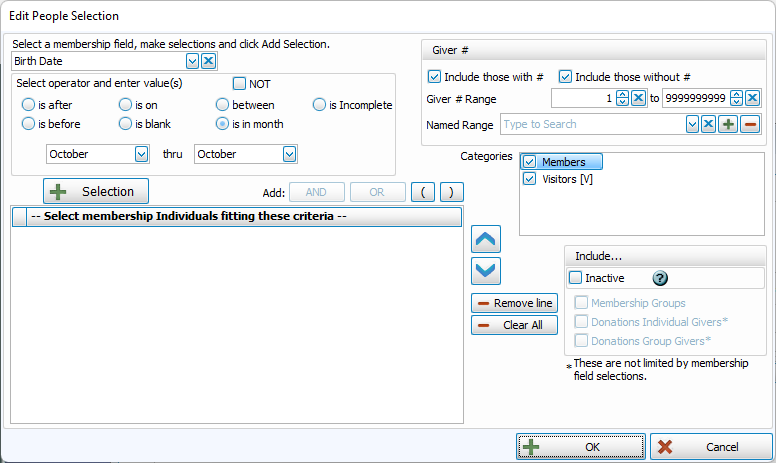
Using the Birthday Report button will preselect Birth Date as criteria for this report and default to birth dates in the current month. Select a month, range, or run a report of all recorded birthdays, you can check the box for NOT and the radio button for 'is blank'.

-
Click
 .
. -
Click
 .
. -
Click on the Sort tab at the top of the Step 1 window. Here you can opt to sort your list alphabetically or by date.
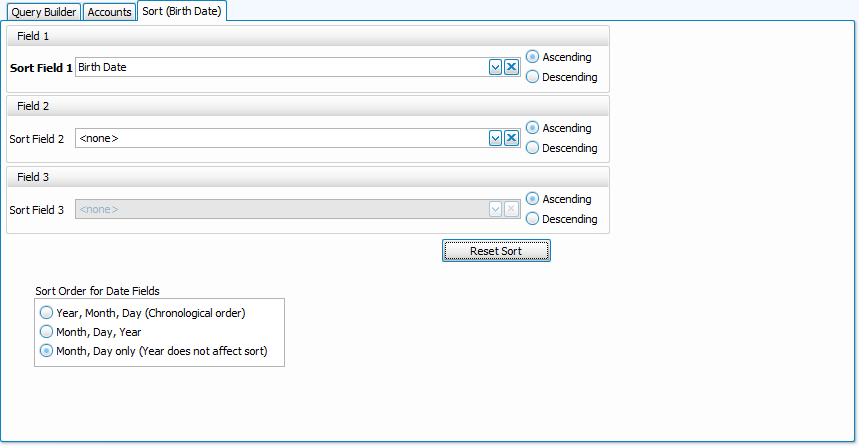
When Sort Field 1 contains a date field, you can also decide whether you want your sort to be:
-
Chronological Order (Year > Month > Day)
-
By Month (Month > Day > Year)
-
By Month and Day (Month > Day)
-
-
Click
 .
. -
Customize the report layout.

Step 2 will choose a Basic Report with a template that includes First and Last name and Birth Date. In the upper right of the Step 2 window, you can opt to include the year or to only include the year for children. You can also create a new Basic layout to use for Birthday Reports if you would like to include phone numbers, addresses or their age or create a multi-column layout for a birth date list that covers a year.
-
Click
 to generate your report in a Print Preview or choose one of the Exports options.
Create Labels for Birthday Cards
-
Navigate to Reports/Exports > Birthday > Labels.
-
Use the same criteria you used for your list, as shown above.
-
In the Step 2 window, select one label per Individual and a layout that uses Names, rather than Mailing Label.
